Quick3DPlan – How to Insert and Edit Doors, Windows, and Wall Openings
Overview
This article explains how to insert and edit doors, windows, and wall openings using the tools in the Architecture tab in Quick3DPlan.
1. Insert a Door
Steps to add a door:
Go to the Architecture tab → select the Add Door tool
Indicate the wall where the door will be placed
The wall closest to the mouse will turn red
Click on the selected wall
The door insertion dialog will open automatically
Choose the door model:
Double-click on the door image to open the model menu
You can enlarge the image by double-clicking on the thumbnail
You can also select a model from the drop-down list (without image preview)
Modify dimensions:
You can change the width, height, or elevation of the door
Centered on wall option → places the door automatically in the middle of the selected wall
Orientation and placement:
Use the Space bar to change the opening direction
To insert the door:
Move the mouse and click
Or type the distance from the wall (example: 20 cm)
2. Insert a Window
Steps to add a window:
Select the Add Window tool
Indicate the wall where it will be placed
Access the model menu by double-clicking the window image
Modify the window:
Change the width, height, or elevation
Centered on wall option → automatically inserts the window in the center
3. Edit a Door
Steps to modify a door:
Select the Change tool next to the Add Door icon
Indicate which door you want to edit → the insertion menu will open
Modify:
Door model
Dimensions
Insertion mode
Move door:
Move button → allows you to reposition the door with the mouse or by entering the distance from the wall
4. Edit or Move a Window
Steps to modify a window:
Same process as doors: use Change and Move
Allows you to adjust position, dimensions, or model
5. Add a Wall Opening
Steps to create an opening in a wall:
Select the Add Opening tool
Indicate the wall where the opening will be created
Define:
Opening height
Width
Elevation from the floor
Insert it manually or enter the distance from a wall
6. 3D Verification
3D plan view:
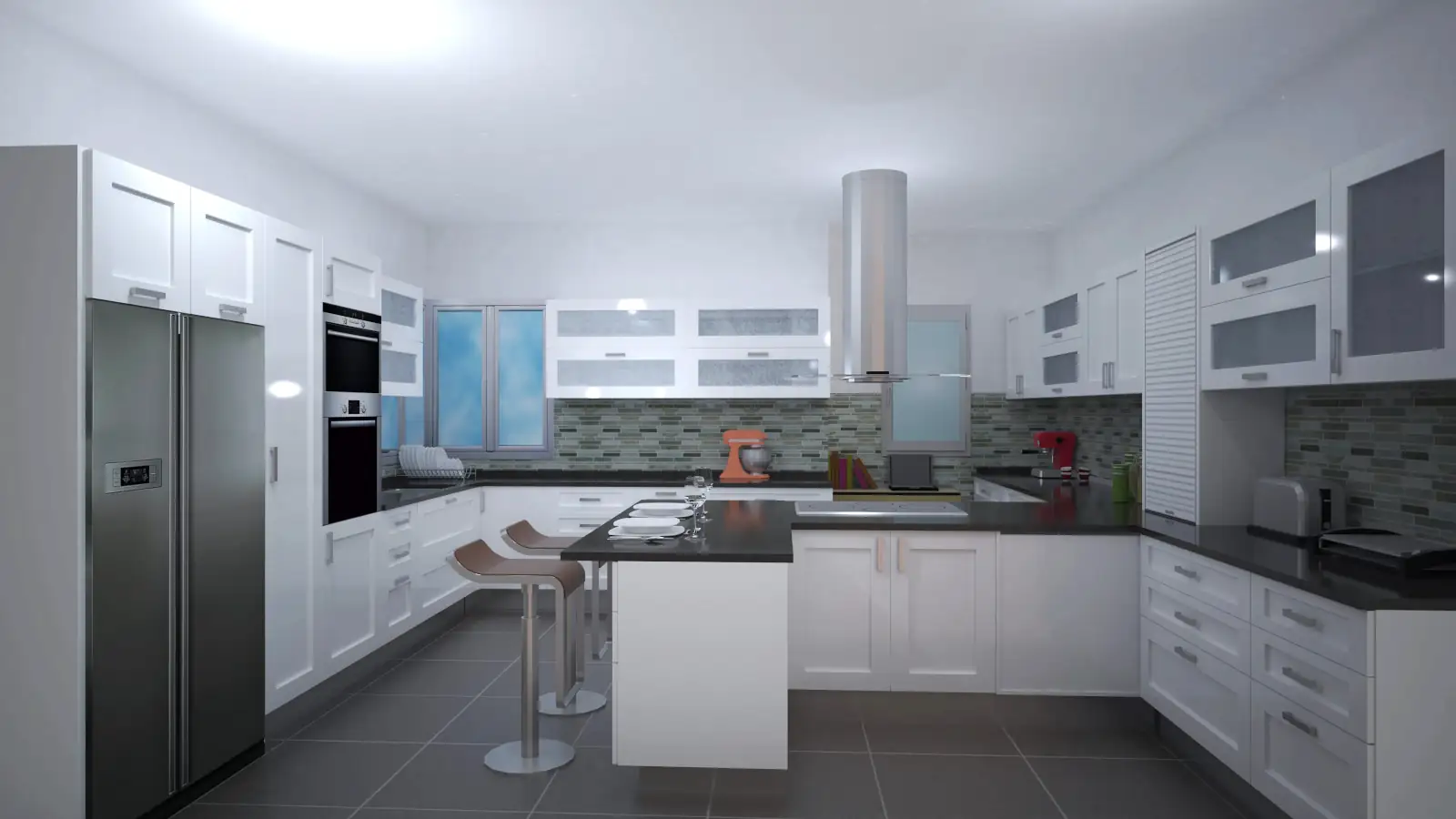
Allows you to visualize the door, window, and opening inserted in the room
Final Note
These tools allow you to insert and adjust doors, windows, and openings with precision, giving you full control over the layout of architectural elements in Quick3DPlan.