
Skip to main content
*Audio in Spanish.
-
Quick3DPlan
-
-
- Tips to download the installer correctly
- How to buy the Quick3DPlan or Quick3DCloset subscription
- How to reset the password in Quick3DPlan or Quick3DCloset
- How to check my program's version
- How to recover a project when the software was closed unexpectedly
- How to download Quick3DPlan for Mac again from the Mac App Store
- How to transfer the license to another computer (*Quick3DPlan 12 and earlier)
-
- ERROR: SetupNew\setup.cpp (140)
- ERROR: File System 0004. : c:\Quick3Dplan/???.dll : curpath=C:/Quick3Dplan
- Feature transfer error
- Runtime Error!
- Error message: “The application has failed to start because its side-by-side configuration is incorrect”
- Error message: “The requested operation requires elevation”
- Error message: “This app can't run on your PC”
-
- How to set up the “3D image detail” level
- How to customize catalog measures in Quick3DPlan
- How to insert your company logo to the impressions
- How to print a “3-view window” of the design
- How to print a photorealistic image or render in Quick3DPlan or Quick3DCloset
- How to print plans and sketches in PDF to be able to send them by e-mail to your clients
- How to print a dimensioned front elevation
-
- How to place a cabinet in a non 90º angle corner
- How to place cabinets, countertops and upstands in a corner with a pillar
- How to simulate a ceiling
- How to fill up a small gap between a cabinet and a non-perpendicular wall
- How to make a wall with different backsplashes
- How to put 2 materials on the floor of the room
- How to create beams in the architecture
- How to shorten a previously inserted partition wall
-
- How to place a cabinet in a non 90º angle corner
- How to place cabinets, countertops and upstands in a corner with a pillar
- How to fill up a small gap between a cabinet and a non-perpendicular wall
- How to apply GOLA type handles to a selected door
- How to erase the handles
- How to insert an L-shape corner with a different door width
- How to make a peninsula or island in the middle of the kitchen with a “breakfast bar”
- How to place a 35-cm folding door cabinet above a refrigerator
- How to place a 60-cm high fridge under a worktop
- How to set the number of drawers in a unit
- How to insert a blind corner for a sink
- How to place 2 rows of wall units with different depths
- How to place a tall cabinet with doors at the top and bottom, and 2 shelves in the center
- How to place a sink unit with drawers instead of doors
- How to put a worktop on top of a dishwasher or washing machine
- How to remove cornices and light pelmets from wall cabinets
- How to extend a cabinet’s countertop to make a “breakfast bar”
- How to adjust the sides to align them with the door
- How to add a plinth to cover the legs of a cabinet
- How to put a “ceiling scribe” cornice
- How to place backsplashes between base and wall units
- How to place a side panel made of the same material as the countertop to create a “waterfall countertop”
- How to insert a corner unit with an upstand in just one side only
- Mostrar artículos restantes (8) Contraer artículos
-
- How to adjust the “Closets module” window to be able to see the lower buttons (in the case they are not visible)
- How to hide the closet doors to see the interior in Quick3DPlan
- How to place a vertical divider that fits in a selected space in Quick3DPlan
- How to reduce the depth of one of the modules to adapt it to a pillar in Quick3DPlan
- How to “simulate” an L-shaped closet, a closet with 2 fronts, or a corner closet in Quick3DPlan
- How to make a “built-in closet” in Quick3DPlan
- How to change the number of modules in cabinets with sliding and swing doors in Quick3DPlan
- How to create “hanging closets” in Quick3DPlan
-
- How to use perspectives in Quick3DPlan or Quick3DCloset
- How to use the option to create photorealistic images or “Renders”
- How to activate the “image history” in the Render window
- How the lights work and how to configure them correctly
- How to show elevations of furniture in narrow kitchens
- How to save a picture of a kitchen dimensioned elevation
- How to change the door, baseboard and worktop colour and material
- How to place a side panel made of the same material as the countertop to create a “waterfall countertop”
-
-
-
Quick3DCloset
-
-
- Tips to download the installer correctly
- How to buy the Quick3DPlan or Quick3DCloset subscription
- How to reset the password in Quick3DPlan or Quick3DCloset
- How to check my program's version
- How to recover a project when the software was closed unexpectedly
-
- ERROR: SetupNew\setup.cpp (140)
- ERROR: File System 0004. : c:\Quick3DCloset/???.dll : curpath=C:/Quick3DCloset
- Feature transfer error
- Runtime Error!
- Error message: “The application has failed to start because its side-by-side configuration is incorrect”
- Error message: “The requested operation requires elevation”
- Error message: “This app can't run on your PC”
-
- How to set up the “3D image detail” level
- How to insert your company logo to the impressions
- How to print a “3-view window” of the design
- How to print a photorealistic image or render in Quick3DPlan or Quick3DCloset
- How to print plans and sketches in PDF to be able to send them by e-mail to your clients
-
- How to change the accessories material
- How to hide the closet doors to see the interior in Quick3DCloset
- How to place a vertical divider that fits in a selected space in Quick3DCloset
- How to create a pocket to adapt the closet to a pillar in Quick3DCloset
- How to “simulate” an L-shaped closet, a closet with 2 fronts, or a corner closet in Quick3DCloset
- How to make a “built-in closet” in Quick3DCloset
- How to create “hanging closets” in Quick3DCloset
-
Published
Updated
ByMicrocad Software
Quick3DPlan – Light Control and Rendering
Overview
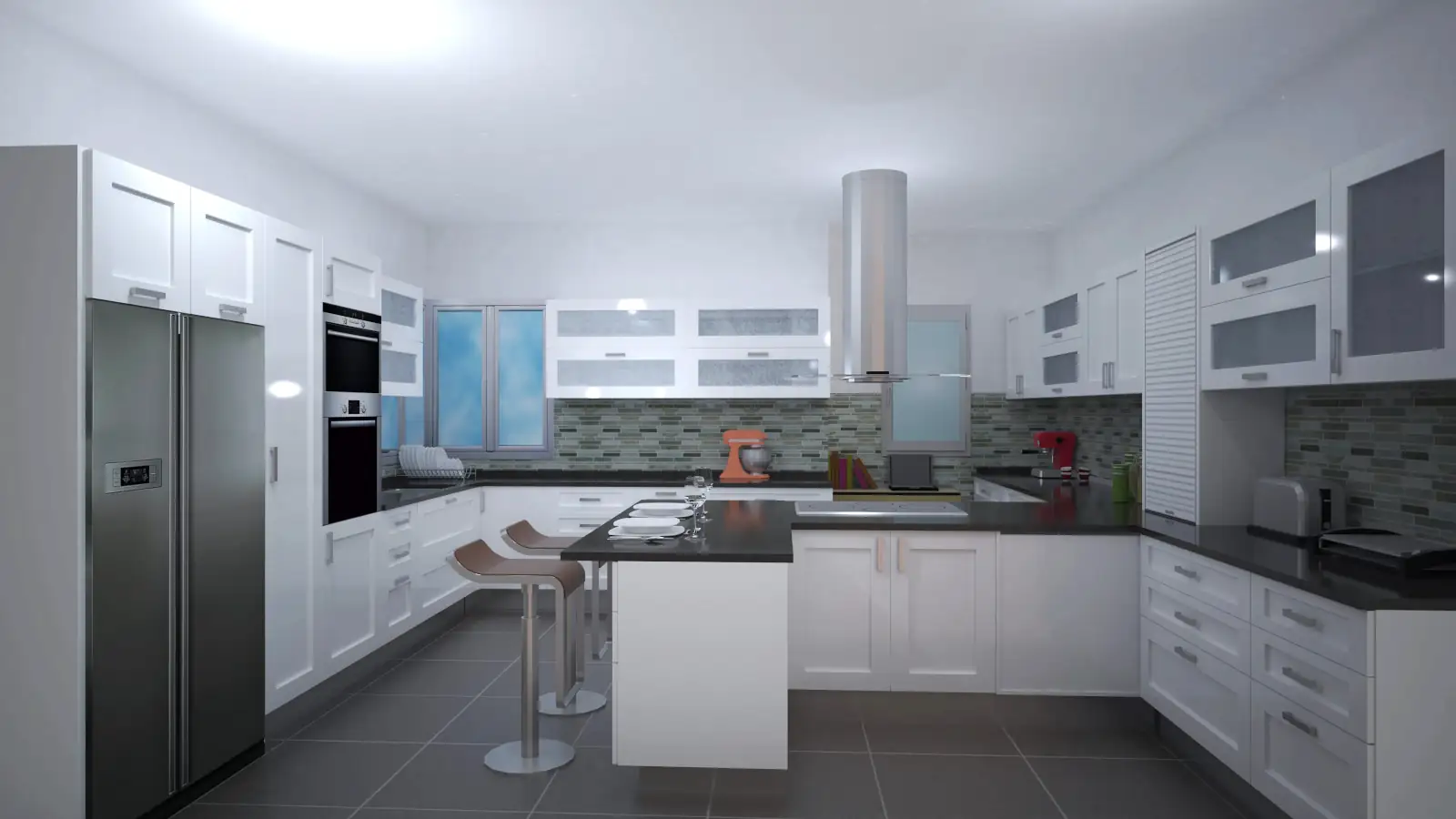
In this video, we will learn how to configure project lights, move them, adjust intensity, shadows, and elevation, and create high-quality renders with all the editing and image-saving options.
1. Prepare the Scene for Light Control
- Best to work in floor plan view or 3D top-down view
- Photo tab → Lights tool
Lights dialog includes:
- List of lights with:
- Status: on/off
- Shadow: enable/disable for each light
- Light name
- Intensity (0–10)
- Elevation above the floor
- Changes are reflected in real time
2. Adjust Intensity and Shadows
- Global intensity bar → increase (right) or decrease (left)
- Shadow bar → control darkness of projected shadows
3. Move Lights in the Design
- Select a light → click the Move icon
- Move the cursor → click to indicate the new position
- Repeat for all lights until achieving optimal illumination
4. Render the Scene
- Photo tab → Photo/Render tool
- Configure parameters:
- Image size and resolution
- Render quality:
- High → more realistic, longer processing time
- Normal → faster render
- Smoothing → softens lights and shadows
- Show ceiling → enable/disable
- Reflection → adjust for floor, walls, countertops, and doors
- CPU priority:
- Low → slower, computer remains usable
- High → faster, requires good hardware
5. Adjust Lights Before Rendering
- Open a saved view → Photo tab → accept configured parameters
- If lights are too intense → adjust in the Lights dialog → re-render
- Render quality → high or normal depending on need
- Compare results with previous renders
6. Save, Edit, and Manage Images
- Save tool → choose location and format (PNG, JPG, BMP)
- Edit before saving tool:
- Adjust brightness, contrast, and saturation
- Tint the image with a color
- Apply filters: blur, black & white, sepia, oil painting effect
- Insert logo: define position and size
- Insert watermark: text, font, size, and position
- Click OK → confirm save
Note:
This process allows you to control every detail of lighting, achieve more realistic renders, and maintain a history of images for comparison, editing, or publishing efficiently.
Table of contents